Automatically removing an image background means an AI model recognizes the main subject in the image — people, specifically, here — and separates it from everything behind it, so you get a cutout with a transparent background ready to composite onto any design. The technology is fast and impressive when the image is suitable, but it fails in predictable ways with curly hair, fine edges and similar colors. This guide explains how the technology actually works inside your browser step by step, how to get the best result from our tool, and when the result is not enough and you need another alternative.
How does background removal technology work?
The tool here does not use a "smart eraser" that compares colors like older tools; it uses a machine learning model from the MediaPipe family dedicated to a task called "Person Segmentation". The idea, in short:
- Analyzing the image: the model passes the image through a neural network trained on huge numbers of photos of people, so it recognizes body, face, hair and clothing patterns as "a person" whatever the background.
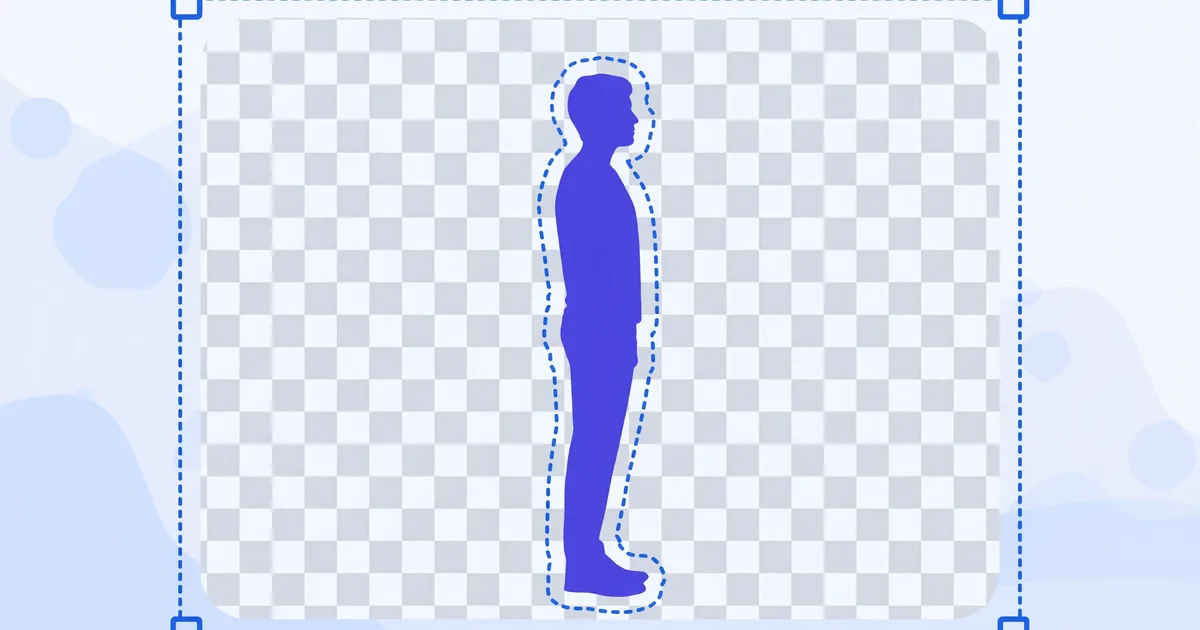
- Producing the separation mask: the model outputs a probability map the size of the image; every pixel carries a confidence score that it belongs to the person or to the background, and this map is the "mask".
- Applying the mask: the person's pixels are kept as they are, and the background pixels are replaced with full transparency, a color, or a blur, depending on your choice, with the transition edge softened so the cutout does not look cut with paper scissors.
The most important point for your privacy: all of this happens inside your browser, on your device. Your image is not uploaded to any server and never leaves your device at all; the only thing downloaded from the internet is the model files themselves from a CDN on first use, which is why the first processing is slower than later ones while the model arrives and initializes.
Steps to remove an image background with the tool
- Open the Background Remover tool and choose your portrait; the tool accepts JPG, PNG, WebP and BMP formats up to 20 MB.
- Wait for processing to finish; the first time takes longer because the model is downloaded and initialized in your browser.
- Choose the result background: transparent (saved as PNG) for compositing onto other designs, white for document and store photos, a color of your choice, or blurring the original background to hide its details while keeping a sense of place.
- Adjust the "sensitivity" and "edge softness" sliders and watch the preview update instantly without rerunning the model: raise sensitivity to remove stubborn background remnants, and lower it if you notice parts of the person being eaten away.
- If you do not like the result, try the other model from the advanced settings: "General" is more accurate for ordinary photographs, and "Fast" is quicker and designed for landscape images at lower precision.
- Download the result, and if you want to reduce its size for publishing, run it through the Compress Images tool, which preserves transparency when exporting as PNG or WebP.
When does background removal fail? The hard cases, honestly
Knowing the technology's limits saves you frustrating experiments, and these are the most common failure points and their causes:
- Curly and flyaway hair edges: fine, semi-transparent hair strands are the hardest thing any segmentation model faces; edges may look rough, some strands may be lost, or a halo of the background color may remain around the head. Photos with tied-back hair or short cuts give much cleaner results.
- The subject's color resembling the background: a white shirt against a white wall, or blond hair against a bright sunny background, confuses the separation boundaries even for a semantic model that does not rely on color alone; weak contrast remains the number one enemy of a clean result.
- Products, animals and objects: this tool is designed for people exclusively; the model does not recognize a product or an animal as a foreground, so it may delete it entirely or keep random parts of it. For product photos you need a background removal tool dedicated to products, and you should not expect a usable result from this tool there.
- Weak lighting and blur: a shaky, dark or low-resolution photo gives the model weak signals, so edges come out wavy and parts of the limbs go missing.
- Hands and held objects partly outside the frame: whatever extends beyond the photo's frame or overlaps with another person may be separated inconsistently.
- Transparent clothing, lace and thin glasses: semi-transparent elements and fine glasses frames may be deleted or distorted, because the mask works at a per-pixel probability level, not on a real understanding of the material.
Practical tips for a cleaner result
- Shoot against a contrasting, simple background: a wall in a color different from your clothes and hair, with good, even lighting, raises the separation quality more than any later setting.
- Start with the "General" model: it is the most accurate for ordinary photos, and only turn to "Fast" when speed matters to you or the first fails with a landscape image.
- Fix things with the two sliders before retrying: many minor flaws (background remnants at the shoulder, a rough edge) are solved by moving sensitivity and edge softness with an instant preview, without reprocessing.
- Zoom into the result and inspect the edges: what looks clean in a small preview may show its flaws when enlarged, especially around the hair and shoulders; inspect before adopting the image in a final design.
- Composite onto a background similar to the target: if a faint light halo remains around the edges, placing the cutout on a light background hides it, while a very dark background exposes it.
- Set the dimensions after separation: a finished cutout usually needs a specific publishing size; use the Resize Image tool with PNG or WebP output to preserve transparency.
Technical limits you should know before relying on it
In addition to the above: the image is processed at its original dimensions up to 3000 pixels for the longest side, and automatically shrunk after that to protect browser memory, so huge professional photos will come out at smaller dimensions than their originals. The person themselves stays at their original quality inside the mask, but the final edges depend on the model's precision and will not match professional manual cutting in editing software for hard cases. The tool also processes one image at a time, as shown in its interface, so it suits individual portraits, not processing large batches of store photos. Finally, a transparent-background result is saved as PNG only when transparency is chosen, while a colored or blurred background is saved as JPG.
What do you do with the cutout after removing the background? Practical uses
The result is not an end in itself; its value lies in what you build on it. The most common uses: compositing your portrait onto a clean, uniform background for professional profile photos and work accounts; replacing a busy background with a plain colored one in social media post designs so the person stands out and the design reads easily; producing a document photo with a white background when an organization asks for a clean official photo (noting that official photo requirements for government documents may stipulate direct photography with no processing, so check the organization's conditions before relying on it); placing your photo inside presentation templates and video thumbnails professionally; and making personal stickers and expressive images for messaging. In all these cases, keep the transparent PNG copy as the master for compositing, and export copies at different sizes and formats for each publishing channel instead of editing the transparent copy itself repeatedly.
Conclusion
Removing an image background with a person segmentation model inside the browser gives you clean cutouts of your portraits in seconds, with complete privacy because your image never leaves your device. The secret to success is giving the model an easy image: good lighting, clear contrast and a simple background, then adjusting sensitivity and edge softness, and accepting that flyaway hair, similar colors and products are outside this technology's specialty. Try it on your next portrait and judge for yourself.