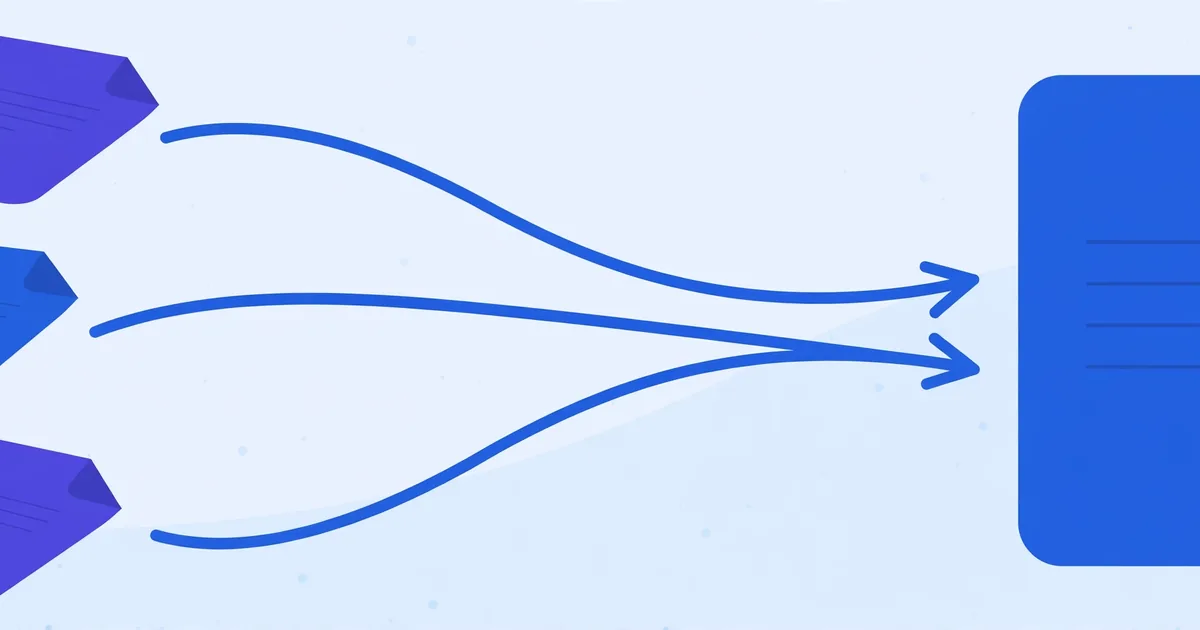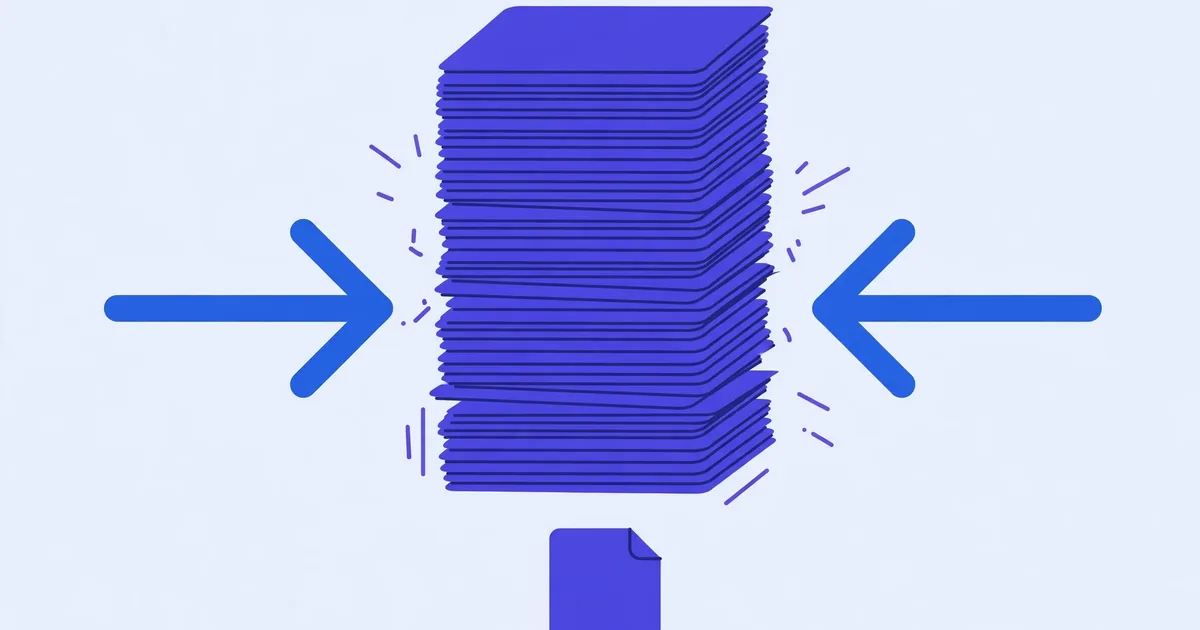
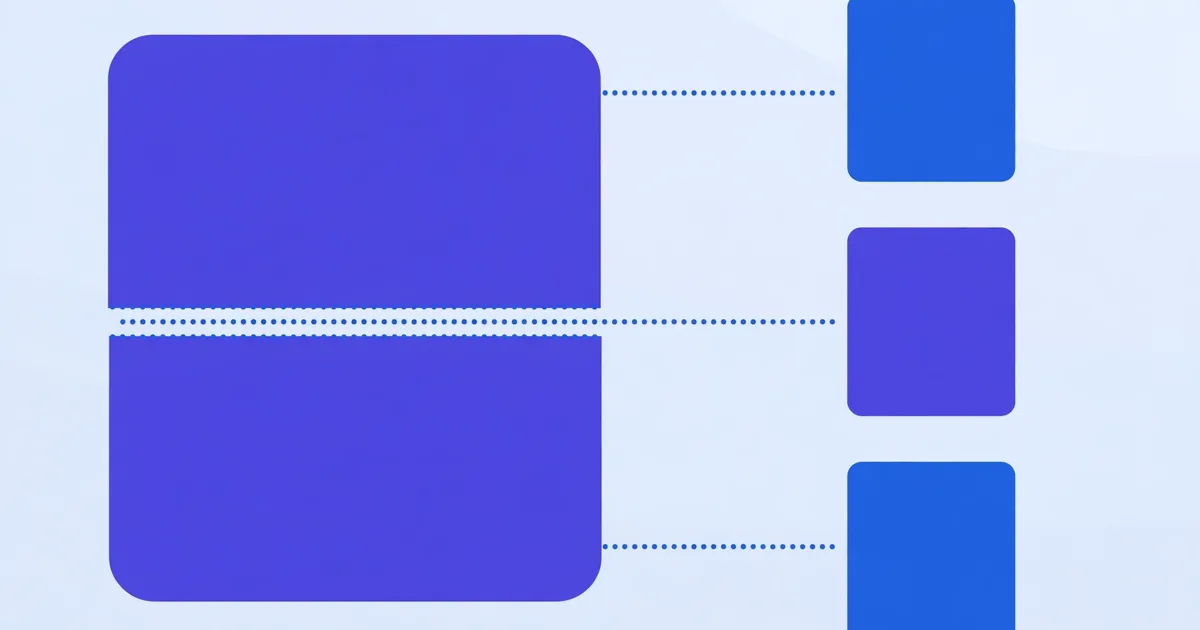
We often receive a single huge PDF that contains everything: a whole book when you only need one chapter, a hundred-page report when only the results pages need to be sent, or one scanned file gathering dozens of documents into a single file. The solution in all these cases is to split the PDF into smaller parts or extract only the pages you need. The good news is that this process does not modify the content of the pages at all; it copies the pages exactly as they are into new files, so there is no loss of quality and no change in formatting. In this guide we explain the three methods the Adawati tool offers, how to write ranges in the correct format, and when extracting into a single file is better than creating separate files.
When do you actually need to split a PDF?
- Sending only part of a document: a party asks for specific pages from a large file, and you do not want to share the rest of the content for professional or private reasons.
- Getting around send-size limits: a file exceeds the email attachment or upload-platform limit, so splitting it into smaller parts makes it sendable in batches.
- Separating merged documents: one file produced by scanning many sheets in a single pass, and you want each document in its own file under its own name.
- Archiving and organization: splitting a book or a long record into separate chapters makes them easier to search and share later.
- Preparing for a next step: splitting the file before converting part of it to Word, compressing it or signing it, instead of processing the whole file.
The three ways to split a PDF in the tool
1) Every page in its own file
The simplest method: a 40-page file produces 40 files, each with one page. This method suits separating merged scanned documents, or extracting many pages so you can rearrange them or choose from them later. The output files are named after your original file with the page number added, ordered so they appear in the correct sequence in your folder.
2) Custom ranges
The most flexible method: you write parts such as 1-5, 6-10 and 12, and you get a file for each part. It is the best choice for splitting a book into chapters, or a report into sections, where the boundaries of the parts are uneven and follow no fixed pattern.
3) Equal groups
You specify the number of pages in each part (for example 10 pages) and the tool automatically splits the file into equal parts, with the last part taking whatever pages remain. Ideal for dividing a large file for sending or uploading in batches without thinking about the boundaries manually.
Steps to split a PDF, step by step
- Open the Split PDF tool and choose your file (up to 100 MB); processing happens inside your browser and the file is not uploaded to any server.
- Choose the splitting method: every page, ranges, or groups.
- If you chose ranges, write them in the format shown in the next section; if you chose groups, specify the number of pages in each part.
- Optional: enable the "Merge all ranges into one file" option if your goal is to extract specific pages into a single file rather than separate files.
- Also optional: add a text watermark if you want to mark the output copies; the watermark is drawn as a transparent image so Arabic letters appear connected and correct.
- Run the split, then review the list of output files with the page count and size of each file.
- Download each file individually, or download them all at once in a ZIP file.
How do you write ranges in the correct format?
The format rule is simple: separate ranges with a comma, write a range with a hyphen between the first page number and the last page number, and write a single page with its number only. The tool also accepts Arabic-Indic digits. Practical examples:
| What you write | The result |
|---|---|
| 1-5, 6-10, 12 | Three files: pages 1 to 5, then 6 to 10, then page 12 alone |
| 1-3, 7, 10-12 with merging enabled | One file containing pages 1, 2, 3, 7, 10, 11 and 12 in the written order |
| 5-1 | An invalid format; the start of the range must be smaller than or equal to its end |
| A number larger than the file's page count | The tool will reject the range or stop at the actual limit; check your file's page count first |
Note that in merge mode the page order follows the order you wrote, so you can write, for example, 10-12, 1-3 to get the later pages first if you want an actual rearrangement, not just an extraction.
Extracting specific pages into one file: when is it better?
Many people split a file into separate files and then discover they actually wanted one smaller file. If your goal is to send "only the important pages" to one person, extracting into a single file is the right choice: write the pages as ranges and enable the merge option. If your goal is to distribute different parts to different people, or to archive each part under its own name, separate files are more suitable. The essential difference from deleting pages is that splitting throws no page away; every page you specify is preserved in the outputs. And if you want the exact opposite — keeping the file and deleting pages from it — the dedicated tool for that is Delete PDF Pages, and we explained the difference between the two operations in the article Delete Pages from a PDF Online, Step by Step.
Honest limits you should know
- Protected files are rejected: the tool does not open files encrypted with a password; remove the protection first with the creating program or with a password remover tool if you know the password.
- Document-level elements may not carry over: because pages are copied into new documents, bookmarks, fillable forms and some internal links may not be preserved. Text, images and page formatting itself remain exactly as they are.
- Limits: a file up to 100 MB and up to 500 output files in a single operation, and performance depends on your device memory; splitting a huge file into hundreds of files on an old phone may be slow.
- The watermark is an image: if you enable it, it is drawn as rendered text, so its text cannot be selected inside the output file — which is intentional, to keep Arabic letters correct.
Practical tip: before splitting an important file, open it and note down the page numbers you want from the table of contents or from a quick browse; two minutes of planning save you from repeating the whole process.
Tips for a cleaner result
- Keep the complete original file and do not replace it with the outputs; you may need a page you excluded later.
- Rename the output files with descriptive names as soon as you download them (such as "chapter-three" instead of the automatic name) before they pile up.
- If the outputs are still large, run them through the Compress PDF tool before sending.
- To reassemble parts in a new order later, use the Merge PDF tool; splitting and merging are two sides of one organizing process, and we explained merging in detail in the Merge PDF Files into One article.
Conclusion
In the end, splitting a PDF is a process that is safe for the content because it copies pages rather than modifying them, and all you need is to choose the method that fits your goal: page by page for a complete separation, ranges for uneven parts, groups for a quick division, or merging the ranges into one file to extract only what matters to you. Try the Split PDF tool on your file now, and the whole process will happen inside your browser with no uploading and no registration.